
Table of Contents
- Logging into SonicView Application
- Initial one-time set up - Updating Admin tab Client Set up
- 2.1 Client Set up
- A: Organization Setup
- B: Extension Configuration
- C: Add New Extension
- D: Successfully Add New Extension / Extensions
- 2.1 Client Set up
Welcome to SonicView Interface! This document provides instructions on navigating through the SonicView Interface and guides you to perform a one-time setup and update information.
1. Logging into SonicView Application
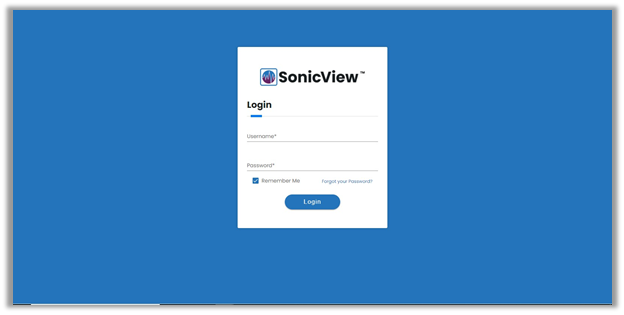
Once the installation is complete in your system, enter your username and password to open the application.
2. Initial one-time setup - Updating Admin tab
2.1. Client Set up
Note: Each screen has a separate ‘Add’ button available to save the data on the same screen itself, however, to save the entire page, you must click on the ‘Save’ button provided at the bottom of the Client Setup page.
A. Organization Setup:
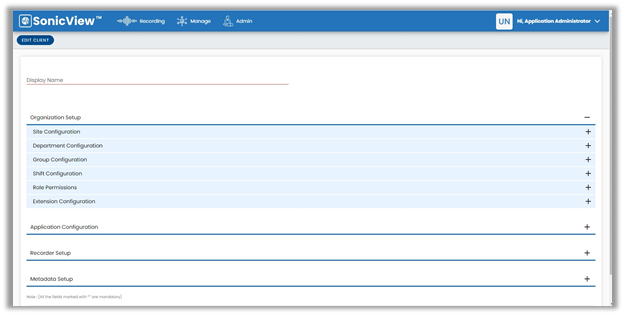
i. Organization Setup is used to configuring your entire organization structure, including sites, departments, groups, shifts, role permissions, and Extension Configuration.
ii. You can navigate to this page by Clicking Admin > Client Setup > Organization Setup
B. Extension Configuration:
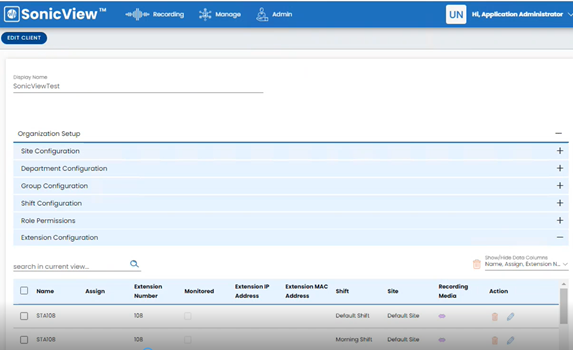
i. Click on Extension Configuration after a click on there is a subtab that is Add New Extension.
ii. You can navigate to this page by Clicking Extension Configuration > Add New Extension
C. Add New Extension
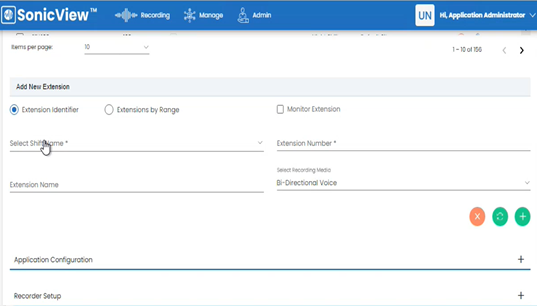
i. In the above screen, you can add a single user or multiple users to the SonicView application.
ii. Selecting the Extension Identifier radio button allows you to add a single user.
iii. Selecting the Extension by Range radio button allows you to add multiple users.
iv. Select other options like Shift Name, Extension Number, and Extension Name.
v. After selecting all the Mandatory fields, please click on the green “+” button to add the New Extension.
vi. Scroll down the page and click on the Save button to save the New Extension.
D: Successfully Add New Extension
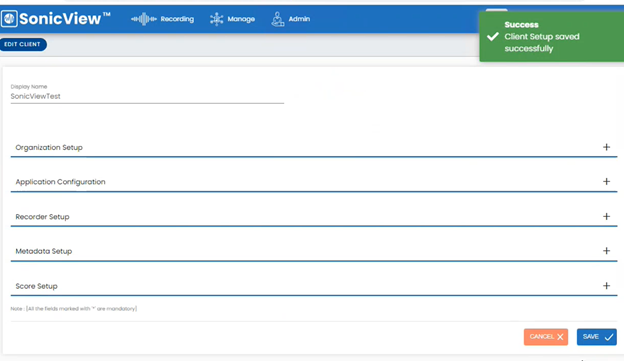
Note:- At the right corner Success: Client Setup saved successfully appears and it means you have added successfully a New Extension or range of Extensions into the SonicView application.
Comments
0 comments
Please sign in to leave a comment.